Audit Log
The organization-wide record of every meaningful change, and how it differs from Movements and Borrowings history.
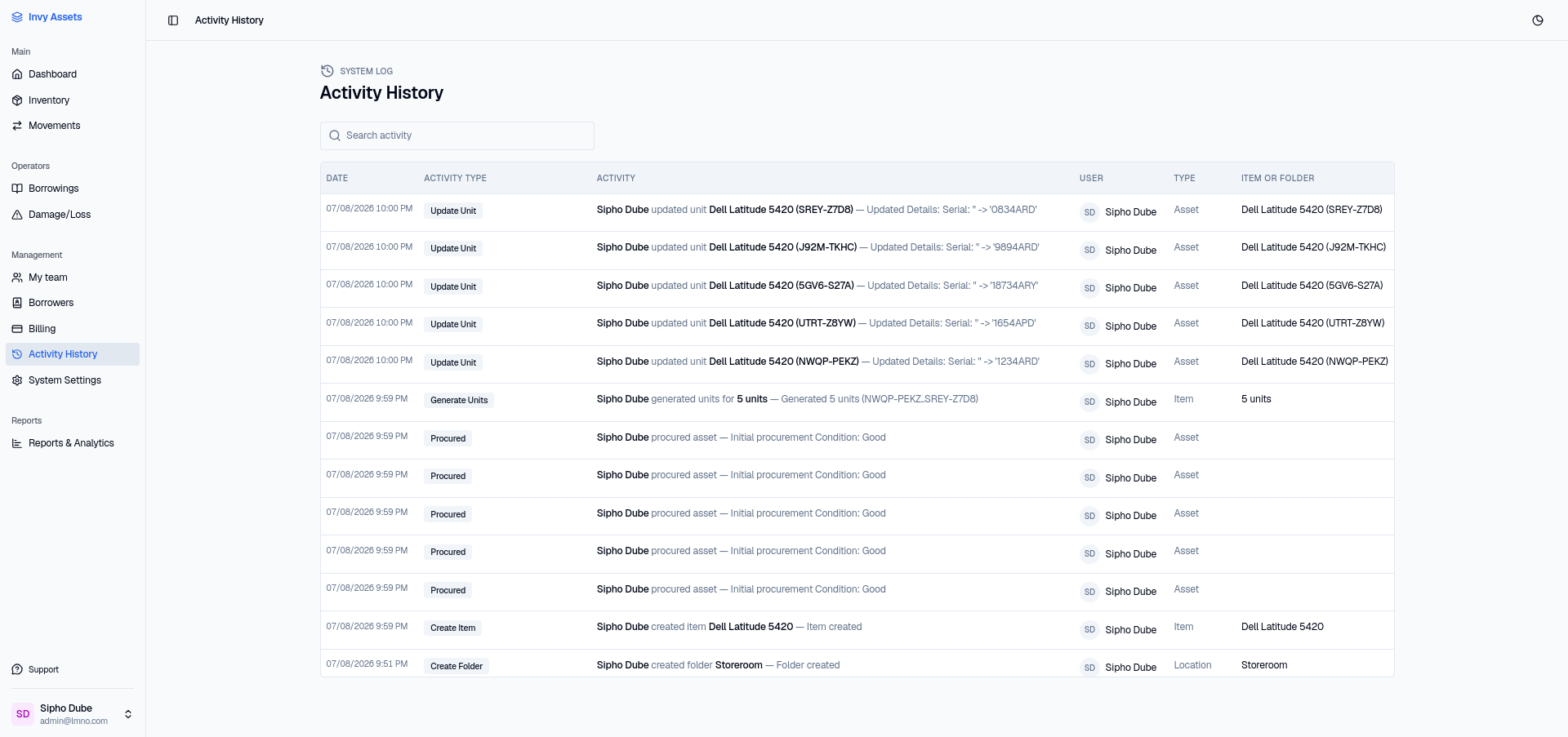
Invy keeps a permanent, append-only record of meaningful changes across your organization — item and unit creation, edits, deletions, restores, moves, loans, and more. Open Activity History, under Management in the sidebar, to see it.
How it’s different from Movements and Borrowings
Invy has a few different history views, each scoped to a specific kind of activity:
- Movements shows only unit relocations between folders.
- Borrowings shows only active and past loans.
- Activity History is the umbrella view — every recorded change across the whole organization, not just moves or loans.
A single folder also has its own scoped history (open a folder and view its History tab) — that’s the same underlying log, just filtered to one folder’s subtree. The scoped view drops the Type column, since everything in it already belongs to that folder.
Reading an entry
Each row records what changed, who changed it, and when:
- Date — when it happened
- Activity type — a short label such as Create Item, Generate Units, Update Unit, or Create Folder
- Activity — a sentence describing the change, including the specific values where relevant (an edited serial number, for example, is shown as its before and after)
- User — who made the change
- Type — whether the change affected an Item, Asset, or Location
- Item or folder — the thing that changed, named with its Invy ID where it’s a single unit
Click any row to open a panel with the full description, in case it’s too long for the table. Where the row concerns an item, the panel also offers Open Item to jump straight to it.
Because units are tracked individually, a bulk action appears as the summary plus its per-unit entries — generating five units records one Generate Units entry alongside the five Procured entries.
Searching
Use Search activity at the top of the page to narrow the log down — it filters the rows as you type, matching items, users, and descriptions.
Who can see it
Access to the Activity History page is controlled by the Audit Logs permission in Roles & Permissions — Administration always has it; other roles need it granted explicitly.
Next steps
- Understand folder-level history for a scoped view of one part of your tree.
- Export a full inventory record if you need a formal audit document.