Importing from a Spreadsheet
Bring an existing inventory spreadsheet into Invy with a CSV import.
Already tracking your inventory in a spreadsheet? Import it directly instead of re-entering everything by hand.
Download the template
- Open Inventory.
- Open the import dialog (from More on the Inventory page).
- Click Download template CSV.
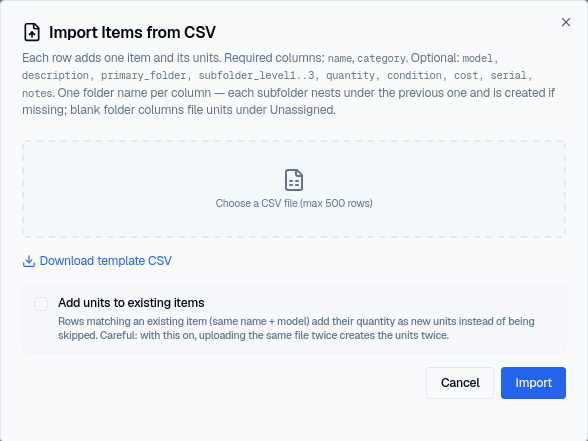
The template’s columns are:
| Column | Meaning |
|---|---|
name |
Item name (required) |
category |
Category |
model |
Model name/number |
description |
Free-text description |
primary_folder |
Top-level folder the units go into |
subfolder_level1 |
Nested folder under the primary folder (optional) |
subfolder_level2 |
Nested folder under level 1 (optional) |
subfolder_level3 |
Nested folder under level 2 (optional) |
quantity |
How many units to create |
condition |
Condition of the units |
cost |
Purchase cost per unit |
serial |
Serial number (single-unit rows only) |
notes |
Free-text notes |
owner |
Blank for company items; an individual’s email or name to record the units as their personal items |
An owner is matched by email first, then by exact name. If it matches nobody, Invy adds a person without an account and names them in the import summary. A name that matches more than one person skips the row — use their email instead. A personal item’s cost is not stored.
Folders referenced in a row that don’t exist yet are created automatically, nested exactly as the primary_folder/subfolder_level* columns describe. If you leave the folder columns blank, that row’s units are filed under Unassigned rather than rejected.
Uploading your file
- Fill in the template with your own data (or export your existing spreadsheet to CSV with matching headers).
- Open the import dialog and choose your file.
- If a row matches an item you already have (same name and model), check Add units to existing items to top up its quantity instead of skipping the row as a duplicate. Careful with this on: importing the same file twice creates the units twice.
- Submit.
Files are capped at 500 rows and 5MB — a real file is normally far smaller than that.
What happens next
Import runs in the background so a large file doesn’t block you — you’ll see a progress toast while it works. Every row that has a problem (missing required field, bad folder path, and so on) is skipped rather than failing the whole import, and you get a per-row report afterward explaining exactly which rows were skipped and why, so you can fix and re-upload just those.
Next steps
- Add items and units one at a time for anything the import missed.
- Rename your folder tiers before a big import if the default Folder/Sub-folder/Spot naming doesn’t fit.