Trash & Recovery
How deleted folders and units are recovered, and how to permanently remove them.
Deleting a folder or a unit in Invy is never immediate and permanent — it goes to Trash first, where it can be restored or, when you’re sure, purged for good.
Opening Trash
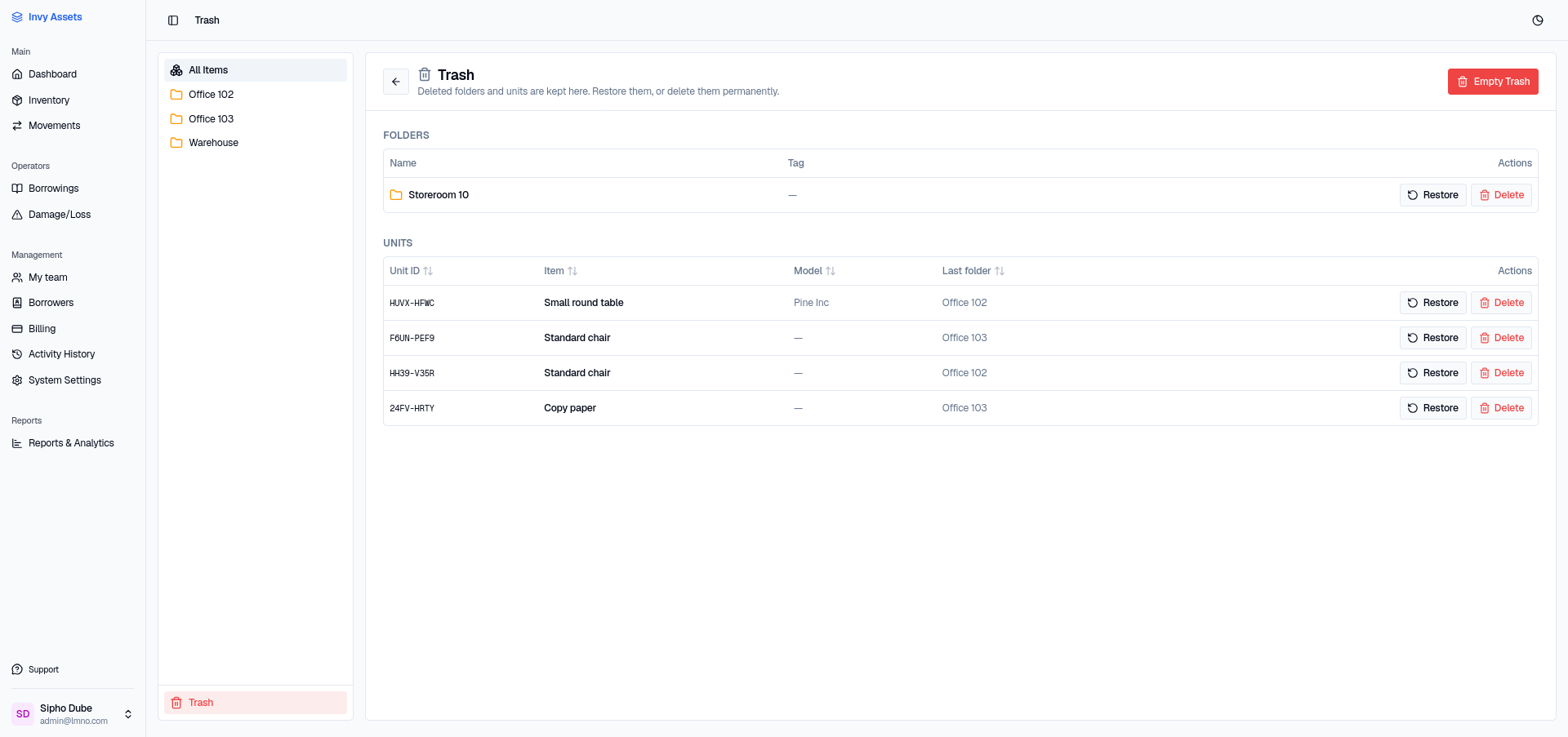
Trash is reachable from the folder page sidebar, not the main navigation — open Inventory, then click Trash at the bottom of the folder tree.
What ends up here
- Deleted folders — deleting a folder sends the whole folder, along with everything nested inside it, to Trash as one entry.
- Deleted units — deleting an individual unit sends just that unit to Trash.
- Personal items removed from the register — when an owner takes their item home, removing it from the register sends it here with the reason recorded.
A folder that still contains personal items can’t be moved to Trash. Update where those items are recorded, or remove them from the register, first.
Restoring something
- Open Trash.
- Find the folder or unit you want back.
- Click Restore.
A restored folder reappears exactly where it was, with its contents intact. A restored unit goes back to its original folder.
Permanently deleting
Restoring isn’t the only option — you can also purge an item from Trash for good:
- Open Trash.
- Find the folder or unit.
- Click Delete and confirm.
This is irreversible — once purged, it’s gone.
Emptying Trash
To clear everything at once, use Empty Trash from the Trash page. You’ll be asked to confirm, since this permanently deletes every folder and unit currently in Trash.
Next steps
- Move units between folders instead of deleting and re-adding them.
- Check the audit log to see who deleted what, and when.