Backups & Restore
Export a full backup of your organization's data, and restore it back in safely.
Beyond Trash, Invy gives you a full, downloadable backup of your organization’s data — useful before a big change, for your own records, or as a safety net.
Where to find it
Open System Settings → Organization, scroll to the Backup & restore card, and click Open.
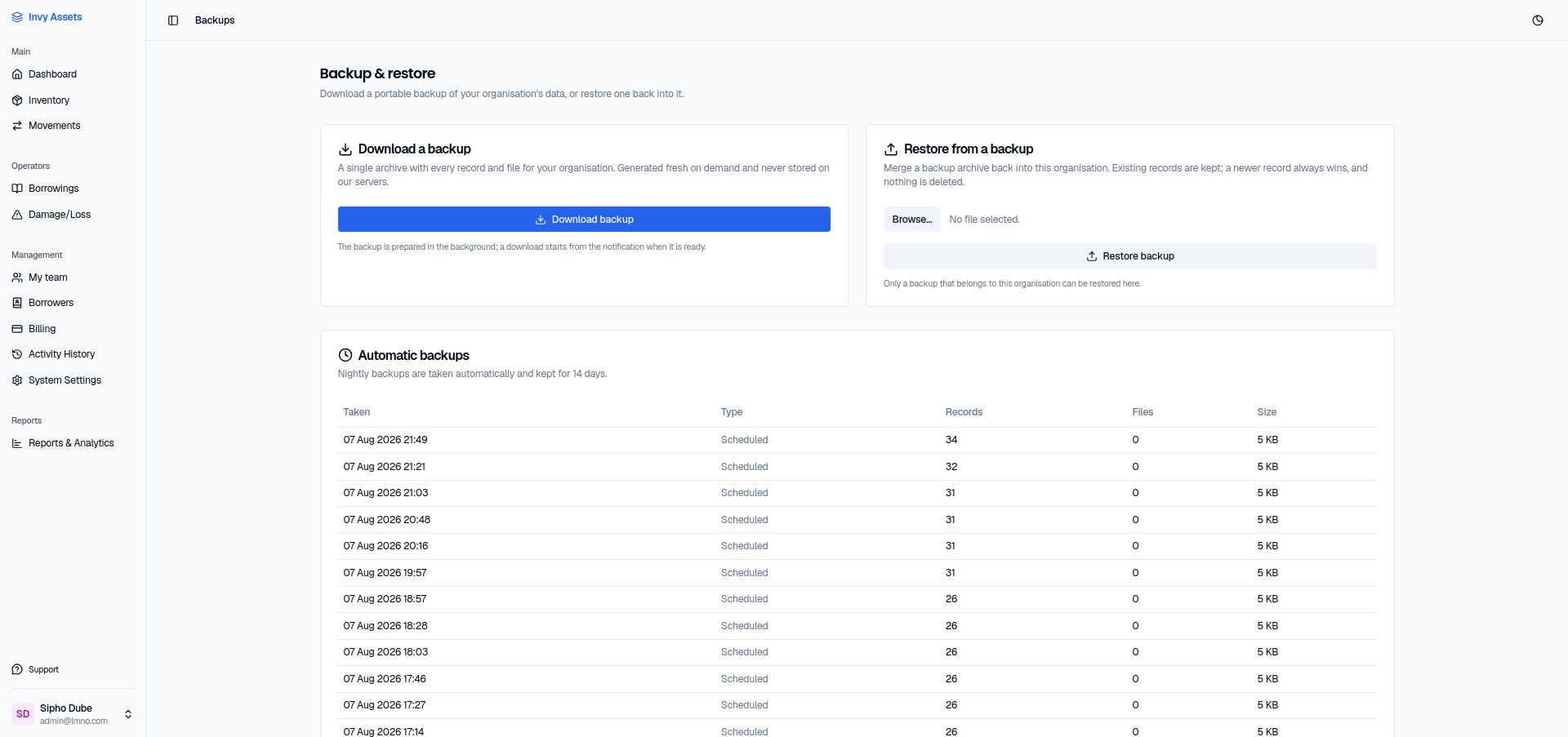
Exporting a backup
- Open the backups page.
- Click Download backup.
The export runs in the background — you’ll see a progress toast, and the finished archive downloads automatically when it’s ready. It contains your organization’s full data (folders, items, units, history, and so on), not just a single table or report.
Restoring a backup
Restoring is deliberately a two-step process — nothing is written on the first submit:
- Open the backups page, under Restore from a backup, upload a previously exported archive.
- Click Restore backup. Invy runs a dry run and shows a Confirm restore preview — the organization and date the archive came from, and counts of what it will add, will update, and leave unchanged — without writing anything yet.
- Review the preview, then confirm to actually run it.
A restore only merges data back into the same organization the archive came from — it won’t let you load one org’s backup into a different org. Nothing is ever deleted by a restore: existing records are only updated if the backup holds a newer version, never removed.
Automatic nightly backups
Beyond on-demand exports, Invy takes a scheduled backup automatically every night and keeps 14 days of history. The backups page lists each one — when it was taken, how many records and files it covers, and its size — so you always have a recent recovery point even if you never click Download.
Next steps
- Understand the audit log for a day-to-day change record — backups are for point-in-time snapshots, not ongoing tracking.
- Review who can access backups — this is a System Settings–level capability.