Roles & Permissions
The roles Invy ships with, and how to control which sections each one can access.
Invy controls access with roles rather than per-user permission checkboxes. Every teammate is assigned one role, and that role determines which sections of the app they can see and act in.
The roles
- Admin — full access to inventory, movements, borrowings, maintenance, your team, and system settings.
- Inventory Manager — manages inventory, movements, locations, and borrowings, without system settings or team management.
- Maintenance — focused access to the dashboard and damage/loss reports.
- Member — general access to borrowings; the default for most day-to-day staff.
- Borrower — not a staff account. This is the role used for people equipment is lent to — they don’t log into the operational app.
New signups that need approval are held in a pending state until an admin assigns them a real role.
Inviting a teammate
Open My team from the sidebar to invite someone and assign a role — see the My Team guide for the full walkthrough, including editing and removing teammates.
Fine-tuning what each role can see
Beyond the default role behavior, admins can adjust exactly which sections each role has access to:
- Go to System Settings → Role Permissions.
- Toggle access per section — Dashboard, Inventory, Movements, Locations, Borrowings, Borrowers (the People page), Maintenance, Analytics, Reports, Export, My Team, System Settings, and Audit Logs — for each role shown (Administration, Inventory Mgr, Maintenance, Member).
Administration always has full access regardless of what’s toggled in its column — the matrix mainly exists to fine-tune Inventory Manager, Maintenance, and Member. Borrower isn’t in the matrix at all — it’s a lending-only shadow account with no app access to configure.
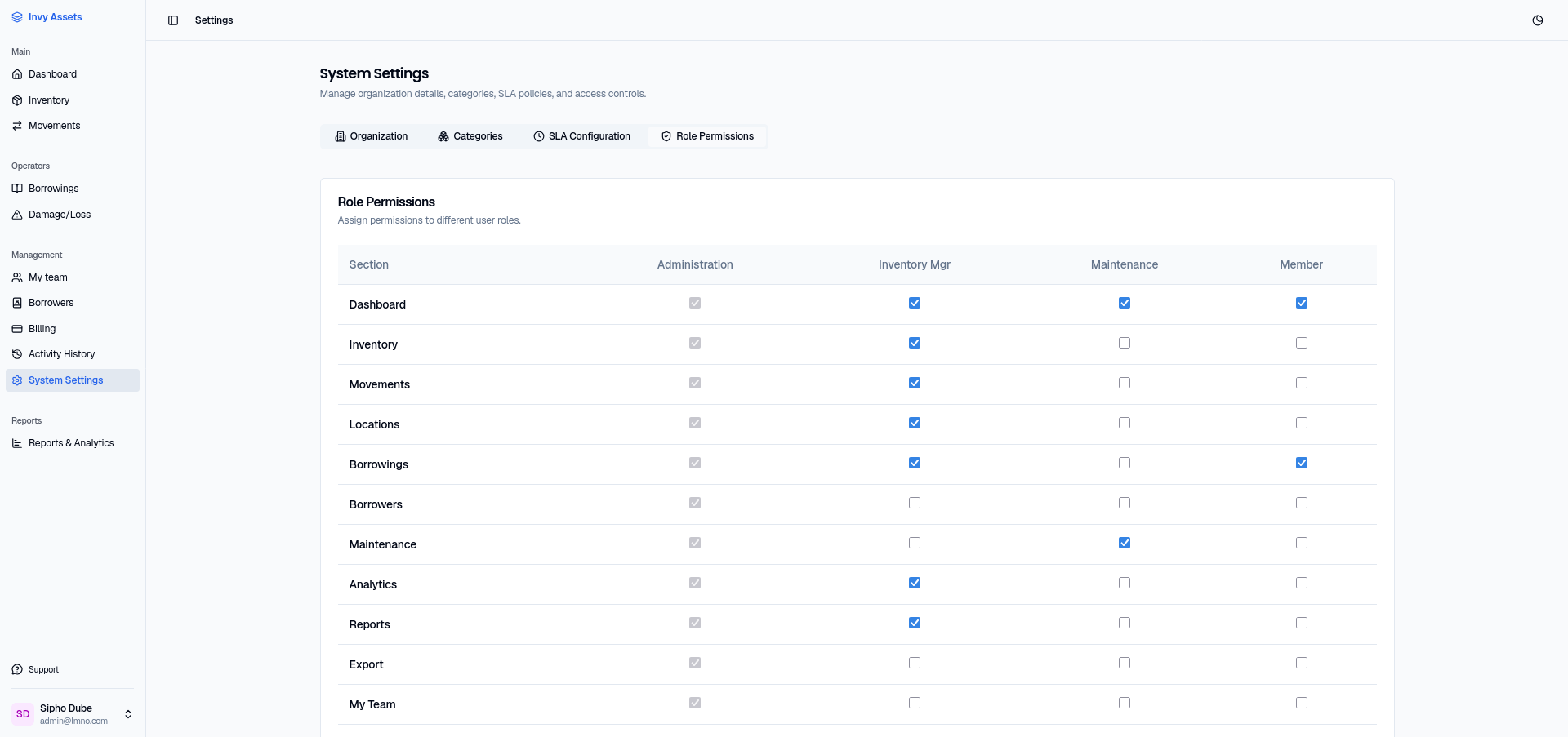
Administration’s checkboxes appear ticked but greyed out — that’s the “always has access” rule showing itself, and it’s why you can’t clear them. The other three columns are yours to set.
Changes take effect immediately for anyone with that role.
Next steps
- Invite and manage teammates in more depth.
- Invite borrowers and start lending.
- Set up your folder structure before inviting a larger team, so roles map cleanly onto it.