Moving Assets
How to relocate units between folders, and where to see the full movement history.
When a piece of equipment physically moves — from a warehouse to a job site, from one shelf to another — record it in Invy with the Move action so the system always reflects reality.
Moving units from a folder’s unit table
- Open the folder the unit is currently in.
- Select the unit’s checkbox (select more than one to move several at once — the same toolbar handles both).
- Click Move in the selection toolbar that appears above the table.
- Choose the destination folder and confirm.
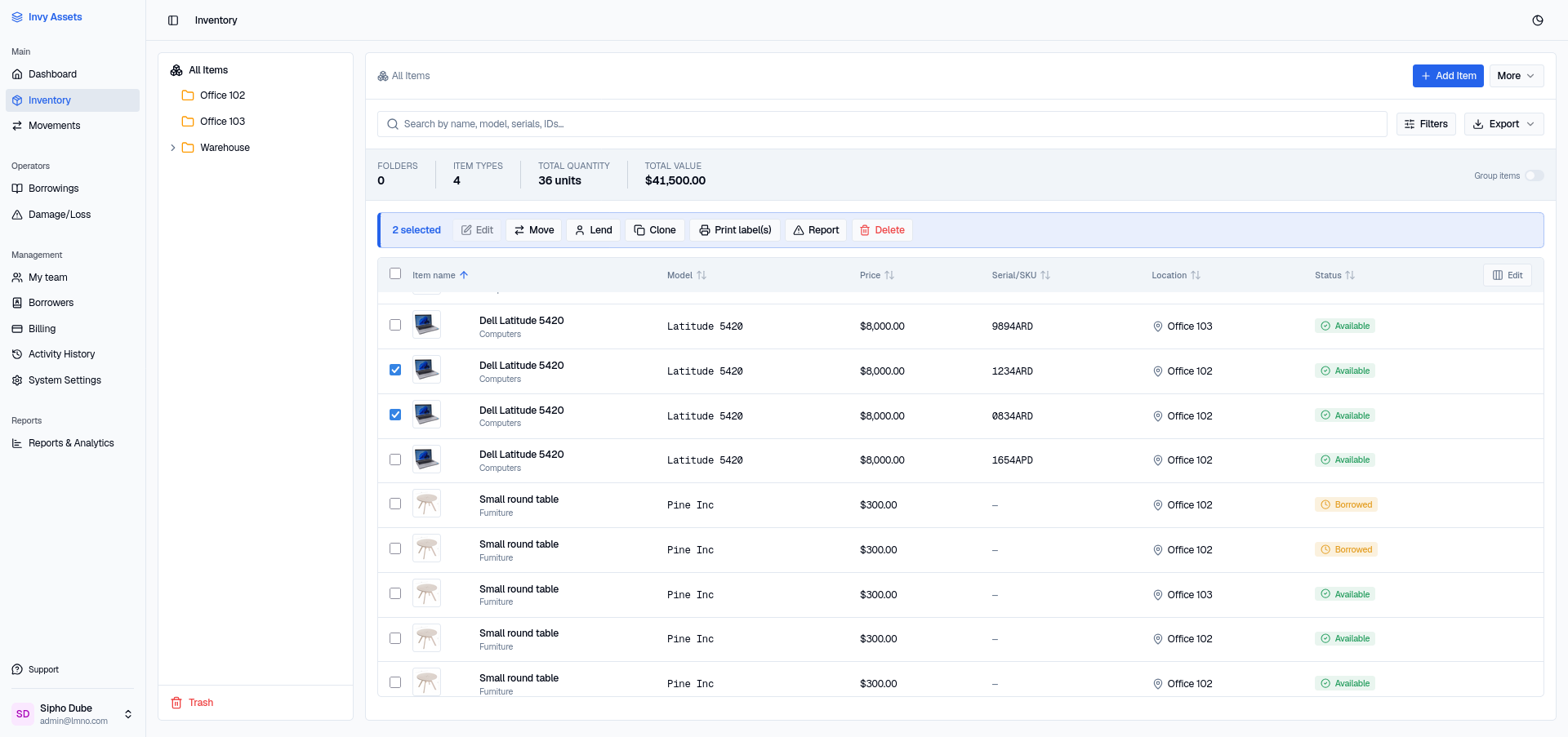
The toolbar counts what you’ve selected and offers every action that applies to the selection:

The Move dialog confirms exactly which units are moving — one chip per unit, with its Invy ID or serial — then asks for the destination. Type a path with / to nest, or name a folder that doesn’t exist yet and Invy creates it. Movement Notes are optional, and worth filling in when the reason matters later.
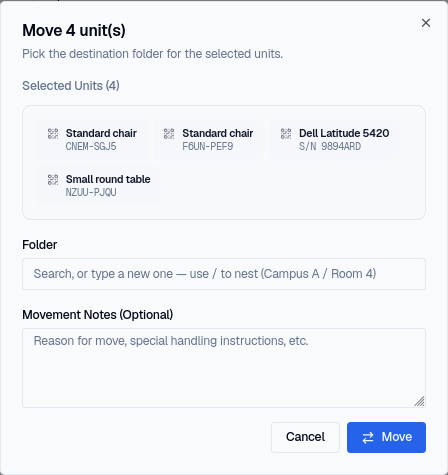
Only units with Available status can be moved — a unit that’s on loan, under maintenance, lost, broken, or retired needs to be returned or resolved first. If your selection includes any unit that isn’t Available, the Move button stays disabled until you narrow the selection.
Moving units from an item’s page
You can also move units without hunting through the folder tree first:
- Open the item’s ⋮ menu and choose Move units.
- Pick which of the item’s current folders to move units from.
- Pick the destination folder and how many units to move.
- Confirm.
This is the faster path when you know the item but not which folder it’s currently in.
Where the history goes
Every move is written permanently to that unit’s own history — you can always see everywhere a unit has been. For an organization-wide view, open Movements from the sidebar to see a full log of every move across every folder, in order.
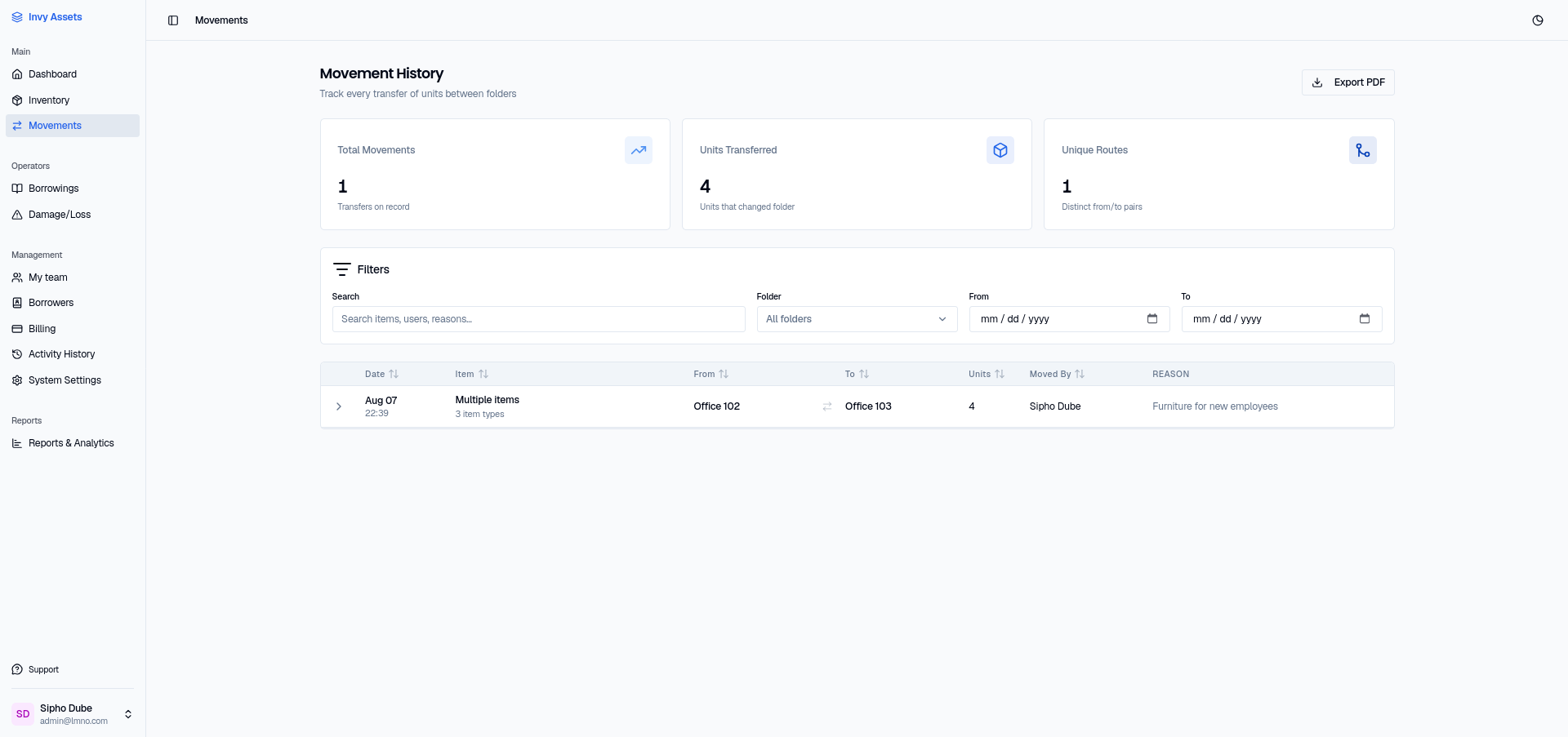
Moving several units at once is recorded as one movement, not one per unit — the row reads “Multiple items” with the number of units and item types involved. Expand it with the arrow at the left to see exactly which units moved.
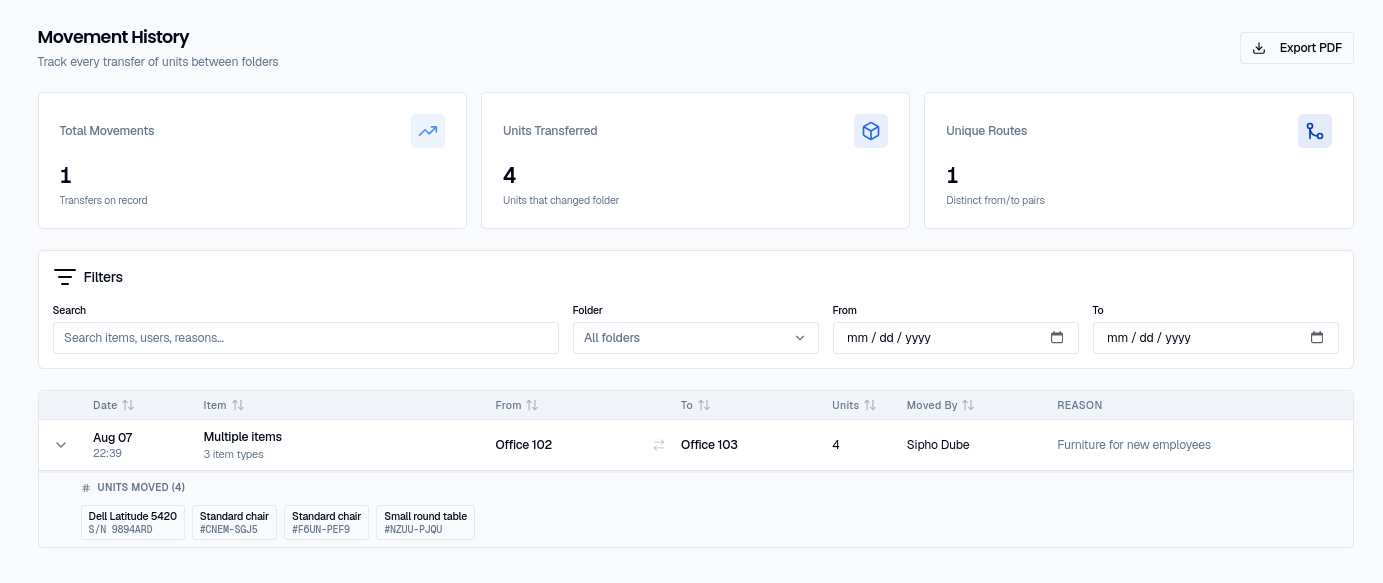
Search, filter by folder, or set a date range to narrow the log, and use Export PDF for a copy of the movement record.
Next steps
- Lend a unit to someone instead of just relocating it.
- See the org-wide activity log for reporting on movement trends.