My Team
Invite, edit, and remove teammates, and see what each person has been doing.
My Team is where you manage the staff accounts on your organization — as opposed to Borrowers (on the People page), which are lending-only accounts for people equipment gets lent to. See Roles & Permissions for the difference and the full role list.
Two ways to bring someone on
Open My team from the sidebar — there are two buttons, for two different situations:
- Invite Member — sends them an email with a sign-in link. Use this when they’ll set up their own account. Pick their role before sending; they show up on the team list right away in a pending state until they accept.
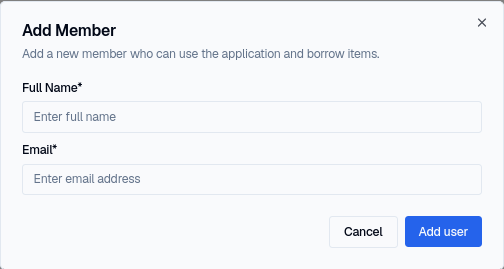
- Add Member — creates the account for them directly with just a name and email. Use this when you’re setting someone up yourself rather than waiting on them to click a link. Accounts created this way join as Member — change their role afterward from their row if they need something else.
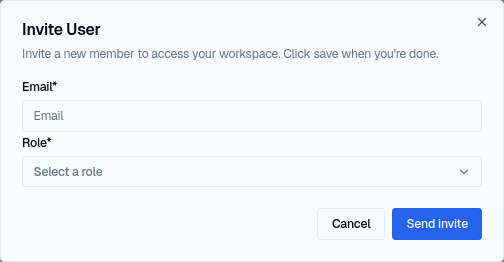
Invite Member asks for the email address and the role they should get, then sends the invitation:
Add Member asks only for a name and email — there’s no role picker, because accounts created this way always start as Member:
Either way, the person appears on the Team Management list once they’re created or invited.
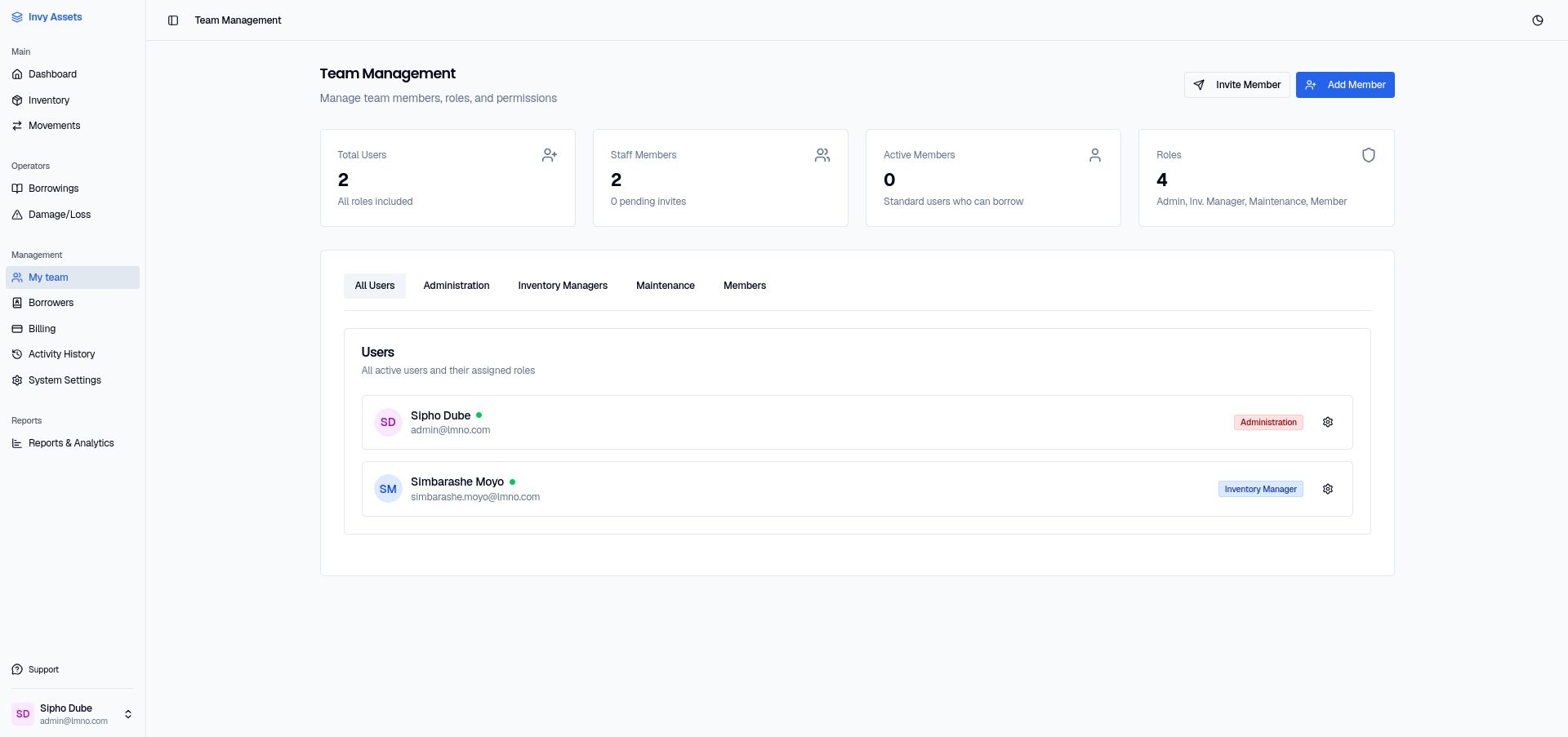
The page leads with a few stats (total users, staff members, active members, and the 4 available roles), and the team list below can be filtered to one role at a time using the tabs above it.
Canceling a pending invite
If someone hasn’t accepted an email invite yet and you need to withdraw it, cancel it from their row on the My Team list — this removes the pending invitation without affecting anyone who has already joined.
Editing a teammate
Open a teammate’s row to change their name, email, or role. Changing their role takes effect immediately — the Role Permissions matrix decides what they can access from that point on.
Removing a teammate
Removing someone from My Team revokes their access immediately. It doesn’t delete the history of things they did — moves, loans, and reports they created stay attributed to them in the audit log.
If they own personal items, the confirmation says how many and adds Demote to owner: their account is removed and their seat freed, but they stay under Owners on the People page with their name, email and items. Permanently delete also keeps the items under their name, without their email.
Viewing a teammate’s activity
Open a teammate’s history to see what they’ve done — a focused view of their contributions to the org, separate from the organization-wide audit log.
Next steps
- Fine-tune what each role can access.
- Add borrowers if you need to lend equipment to people outside your team.